 instapro.club
Download Insta Pro APK for Android
Free for Android · Version 15.95
This page covers everything you need before and after downloading Insta Pro APK: device requirements, how to verify the file, step-by-step installation and fixes for common problems. If you have not read it yet, start with the safety guide. Some websites spell the name InstaPro, but it is the same app.
Unofficial software. Insta Pro is not made by Instagram or Meta and using it can break Instagram's Terms of Use. Use a secondary account and install at your own risk.
Insta Pro APK file details
| App name | Insta Pro APK |
|---|---|
| Version | 15.95 |
| Package name | com.instapro2 |
| File size | About 77 MB to 172 MB, depending on the build |
| Last updated | November 2026 |
| Platform | Android phones and tablets |
| Requires | Android 6.0 and up, no root needed |
| Developer | SamMods (third party, not Instagram or Meta) |
| Price | Free |
Before installing, scan the downloaded file with an antivirus app.
Before you download: requirements
- An Android phone or tablet. iPhone and iPad are not supported.
- Android 6.0 or higher. No root is needed.
- Enough free storage for the APK plus the installed app, and a stable internet connection.
- A secondary Instagram account to sign in with, rather than your main one.
How to verify the APK before installing
Taking two minutes here is the most useful thing you can do for your account's safety.
- Scan the file. Run it through an antivirus app or an online file scanning service. A clean result is not a guarantee, but a warning is a reason to stop.
- Check the file name and size. A file that is far smaller or larger than listed, or that has an unexpected name, should not be installed.
- Download once. Do not install copies you found on other sites, even if the name matches.
How to install Insta Pro APK on Android
-
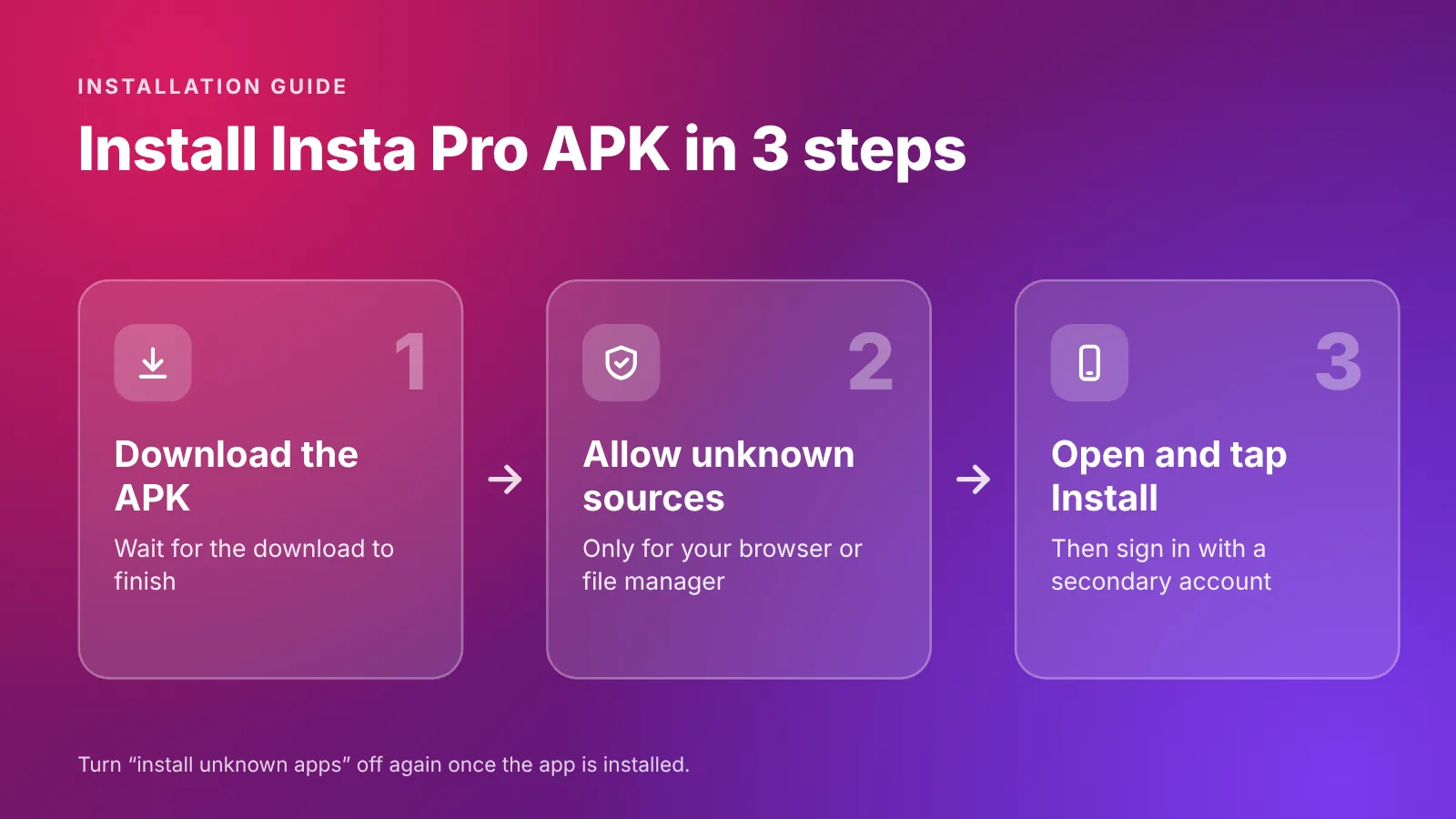
Download the file
Tap the download button above and wait until the download finishes completely. An unfinished file is the most common cause of the "App not installed" error.
-
Allow installs from this source
Go to Settings → Apps → Special app access → Install unknown apps. Choose the browser or file manager you used and switch on Allow from this source. The wording differs by phone brand and Android version.
-
Open the APK and install
Open your Downloads folder, tap the APK file and press Install. If Google Play Protect shows a warning, read it carefully. Continue only if your scan was clean.
-
Sign in
Open the app and sign in with your secondary account. Turn on two-factor authentication for that account if you have not already.
-
Turn the permission off again
Return to the Install unknown apps setting and disable it for your browser or file manager, so other files cannot be installed by accident.
After installing: check permissions and updates
Open Settings → Apps → Insta Pro → Permissions. Allow only what you need, such as photos and media for saving content, and camera or microphone only if you use them. An Instagram client has no reason to ask for SMS, call logs or contacts. Deny anything that looks unrelated.
Insta Pro does not update by itself. When a new build is released, download it from the same source, verify it the same way and install it over the existing app. Old builds can stop working or fail to log in after Instagram changes its app.
Common problems and fixes
| Problem | Likely cause | What to try |
|---|---|---|
| "App not installed" | Incomplete or corrupted download, or unsupported Android version | Delete the file, download again, free up storage and retry |
| Installation blocked | Unknown sources disabled, or Play Protect interrupted it | Enable Install unknown apps for your browser and read the Play Protect message |
| Login failed or "action blocked" | Outdated build, or Instagram restricted the activity | Install the latest build, switch networks, and wait a few hours before trying again |
| App crashes on open | Corrupted cache or an incompatible build | Clear the cache in Settings → Apps → Insta Pro → Storage, or reinstall |
| Downloads do not save | Missing storage or media permission | Allow Photos and media access in the app's permissions |
| Feed will not refresh | Network issue or active VPN | Check your connection, turn off the VPN and restart the app |
How to uninstall Insta Pro
Go to Settings → Apps → Insta Pro → Uninstall. If you had any concern about the build you used, change your Instagram password afterwards and review which devices are logged in under your account's security settings.
Download FAQ
Is the Insta Pro APK download free?
Yes, the APK is free to download. Be careful with any site that asks for payment, surveys or personal details before giving you the file.
Why does Android warn me when I install the APK?
Android warns about any app that does not come from an app store, and Google Play Protect may flag modified apps. Read the warning and only continue if a scan of the file finds nothing.
How do I uninstall Insta Pro?
Open Settings, go to Apps, choose Insta Pro and tap Uninstall. If you are worried about your account, also change your Instagram password afterwards.
Can I install Insta Pro next to the official Instagram app?
Yes, in most cases. Version 15.95 is commonly distributed under its own package name (com.instapro2), so it installs next to the official Instagram app instead of replacing it. If the install fails, uninstall the older Insta Pro build first and try again.
Not sure yet? Read what Insta Pro is, what its features do and what the risks are before you download.